TGS or Lottie JSON
Export an animated GIF or MP4, or save the first frame as PNG. FFmpeg is needed for output encoding.
 MiMiNavigatorDual-panel file manager for macOS
Native media tools · Telegram stickers
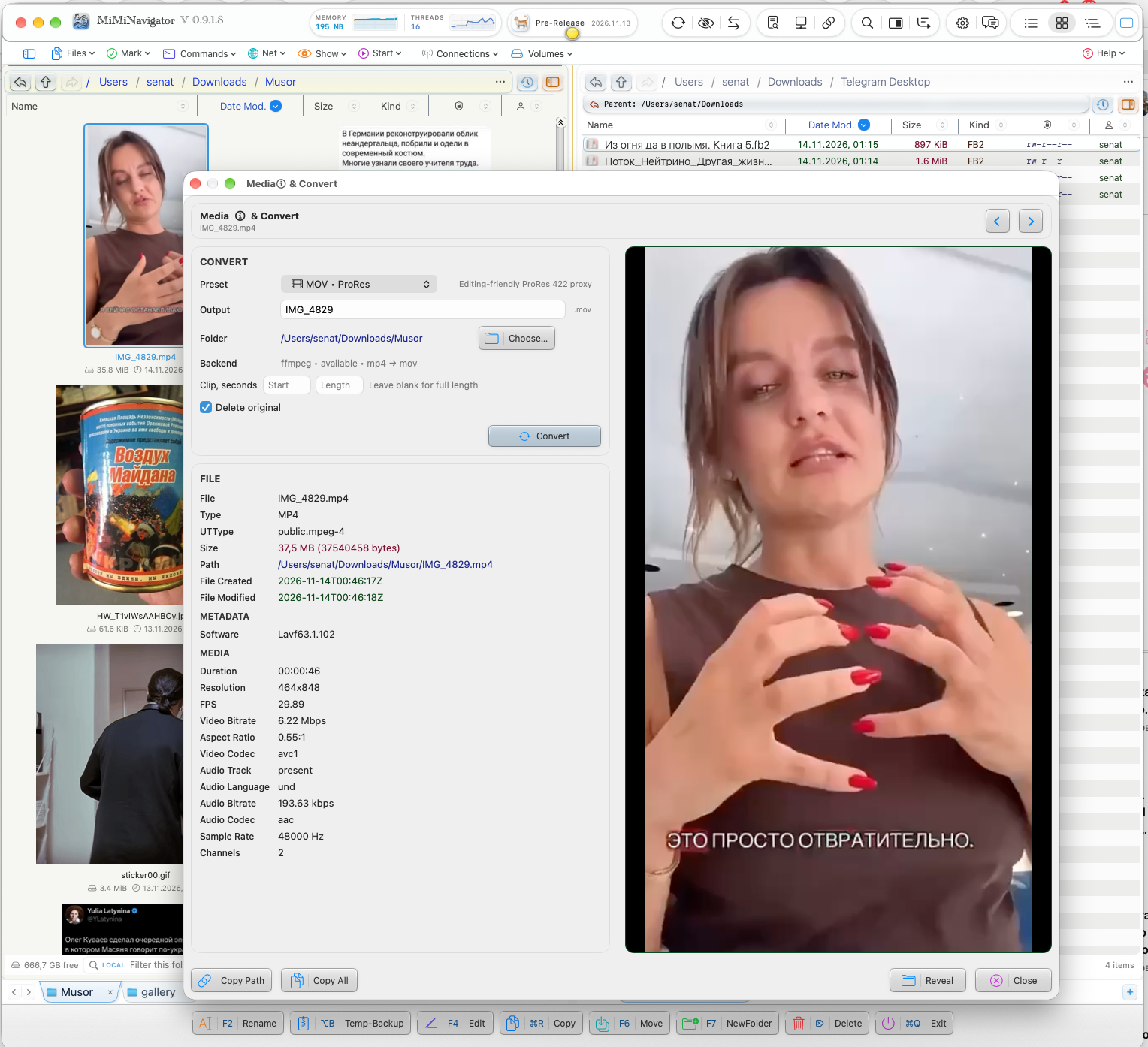
Select a file, inspect its details, choose an output preset, and save the result from the same two-panel workspace. Telegram animated stickers now render through a bundled native engine.
Telegram media
MiMiNavigator includes TelegramMessenger/rlottie for reading animated .tgs stickers and Lottie JSON. The bundled renderer creates frames; FFmpeg encodes the selected output. Python and python-lottie are no longer part of this workflow.
Export an animated GIF or MP4, or save the first frame as PNG. FFmpeg is needed for output encoding.
Create a transparent WebP still image with the Telegram sticker option. This path uses the separately installed cwebp encoder.
Use the Telegram video sticker option to prepare a silent, size-limited WebM from video or GIF input.
The app currently reads TGS; it does not create new TGS files. Available output presets depend on the input file.
One workflow, common media types
Choose among presets supported for the selected source, including common MP4/H.264 workflows. Available targets depend on the source and installed conversion tools.
Convert supported audio files using source-aware presets. MiMiNavigator checks for the optional media tools it needs and reports when setup is required.
Convert supported image formats through the media workflow. Choose an offered target for the selected file rather than relying on a fixed list of every possible format pair.
Create or convert GIF media using available presets. Some workflows use optional tools such as FFmpeg or gifski; the built-in External Tool Doctor helps check dependencies.
Inside the file manager
Open media details for a selected file to inspect metadata and preview it. MiMiNavigator offers source-aware presets, runs conversion through its media tools, and reports the result in the same workspace. It is designed for practical file tasks alongside browsing, copying, and organizing files in two panels.
Conversion depends on the media type and the available encoder tools. FFmpeg is optional and can be installed or diagnosed through MiMiNavigator's external tools settings. Review the available presets in the app for the exact input and output combination.
Questions
No. Its media workflow includes video, audio, image, and GIF conversion, with available presets determined by the selected file.
MiMiNavigator provides the conversion workflow within its file manager. Some conversions rely on optional external media tools, which the app can help diagnose.
Yes. Choose a TGS file in the converter and export GIF, MP4, or a PNG of its first frame. The renderer is bundled; FFmpeg handles the output.
Read the Mac Cleanup guide or learn about Google Drive and Dropbox Share+Link.